04 August 2018

More foggy adventures

It seems I was too eager with my stylized fog effect in my previous post. When I added a fly-through script on my camera (which I hadn't done before writing the previous post) it quickly showed something was wrong:

As you can see in the above image, the gradient moves on the terrain as you turn around. This is a typical side-effect of a depth based fog (which is standard).


Flat depth vs distance

Normally with a single color and a good fog distance this isn't too bad, but because we introduced the gradient this side-effect becomes really apparent. In a side scrolling context this is not much of an issue, since you don't turn around. But often you're turning your head so we desire distance based fog. The above image and the ins and outs of fog come from this excellent tutorial so check that out for more details.

I got a lot of inspiration from the now deprecated "Global Fog" post process effect from Unity. Both that script and the tutorial from catlike coding explain how to implement distance based fog. So we implement this with the PostFX v2 system. First, pass the frustum corners to the shader:

public override void Render(PostProcessRenderContext context)
{
 //...
 
 Camera cam = context.camera;
 Transform camtr = cam.transform;

 Vector3[] frustumCorners = new Vector3[4];
 cam.CalculateFrustumCorners(new Rect(0, 0, 1, 1), 
  cam.farClipPlane, cam.stereoActiveEye, frustumCorners);

 Matrix4x4 frustumVectorsArray = Matrix4x4.identity;
 frustumVectorsArray.SetRow(0, frustumCorners[0]);
 frustumVectorsArray.SetRow(1, frustumCorners[3]);
 frustumVectorsArray.SetRow(2, frustumCorners[1]);
 frustumVectorsArray.SetRow(3, frustumCorners[2]);

 sheet.properties.SetMatrix("_FrustumCorners", frustumVectorsArray);
 sheet.properties.SetVector("_CameraWS", camtr.position);

 //...
}

In the vertex program select the correct corner to have it interpolated:

struct v2f
{
 float4 vertex : SV_POSITION;
 float2 texcoord : TEXCOORD0;
 float2 texcoordStereo : TEXCOORD1;
 float4 ray : TEXCOORD2;
};

v2f Vert(AttributesDefault v)
{
 v2f o;
 
 // ...
 
 i.ray = _FrustumCorners[o.texcoord.x + 2 * o.texcoord.y];
 
 return o;
}

And then use that in the fragment shader:

float4 Frag(v2f i) : SV_Target
{
 half4 color = SAMPLE_TEXTURE2D(_MainTex, sampler_MainTex, i.texcoordStereo);
 float depth = SAMPLE_DEPTH_TEXTURE(_CameraDepthTexture, sampler_CameraDepthTexture, i.texcoordStereo);
 depth = Linear01Depth(depth);

 //float dist = ComputeFogDistance(depth);
 float dist = length(depth * i.ray);

 half fog = 1.0 - ComputeFog(dist);
 half gradientSample = 1.0 - ComputeFog(dist * _Spread);
 half4 fogColor = SAMPLE_TEXTURE2D(_FogGradient, sampler_FogGradient, gradientSample);
 return lerp(color, fogColor, fog * fogColor.a);
}

Easy enough, right? Or so I thought. This did not work at all! For some reason the interpolated rays were incorrect in the fragment shader. I spent the rest of the day with debug rendering, comparing results between the GlobalFog effect and mine, but I failed to find why interpolation seemed broken.

After a good night's sleep (solutions are always found after a good night's sleep) I decided to dig into the source code of the PostFX system. It never occurred to me before that at the end of the Render call in my effect it says "BlitFullscreenTriangle", where in all other legacy post fx examples it says "Blit". In the source code it literally says:

// Use a custom blit method to draw a fullscreen triangle instead of a fullscreen quad
// https://michaldrobot.com/2014/04/01/gcn-execution-patterns-in-full-screen-passes/

Right, ok, that explains a lot, we're not interpolating a quad but a triangle that covers the entire viewport, which is apparently more cache friendly and thus faster. The coordinates look like this:

Where we used to have four vertices between -1 and 1 on both axes we now have a triangle between -1 and 3. Thus we change the provided corners:

public override void Render(PostProcessRenderContext context)
{
 //...
 
 Camera cam = context.camera;
 Transform camtr = cam.transform;

 Vector3[] frustumCorners = new Vector3[4];
 cam.CalculateFrustumCorners(new Rect(0, 0, 1, 1), 
  cam.farClipPlane, cam.stereoActiveEye, frustumCorners);
 var bottomLeft = camtr.TransformVector(frustumCorners[1]);
 var topLeft = camtr.TransformVector(frustumCorners[0]);
 var bottomRight = camtr.TransformVector(frustumCorners[2]);

 Matrix4x4 frustumVectorsArray = Matrix4x4.identity;
 frustumVectorsArray.SetRow(0, bottomLeft);
 frustumVectorsArray.SetRow(1, bottomLeft + (bottomRight - bottomLeft) * 2);
 frustumVectorsArray.SetRow(2, bottomLeft + (topLeft - bottomLeft) * 2);

 sheet.properties.SetMatrix("_FrustumVectorsWS", frustumVectorsArray);

 //...
}

We select the correct corner via the vertex coordinates:

v2f Vert(AttributesDefault v)
{
 v2f o;
 //...
 int index = (o.texcoord.x / 2) + o.texcoord.y;
 o.ray = _FrustumVectorsWS[index];
 //...
 return o;
}

And done! When we now look around us the fog stays the same:

If you looked closely you've also seen some height fog in the gifs, I'm still working on that but expect another update soon on that topic :)

02 August 2018

Stylistic fog from Firewatch with Unity's PostFX v2

A friend of mine (Kenny Guillaume) asked me if it would be possible to implement a fog effect as in Firewatch:

The picture above is taken from this video of the GDC 2015 talk on the art of Firewatch, where they explain how they implemented it.

The effect is simple enough: apply fog as a post process effect and for each sample fetch the fog color from a gradient texture. I even copy pasted the gradients from the same video:

My first take on this was a MonoBehaviour where we apply this effect in the OnRenderImage override. While this yielded good results, this is not how things should be done nowadays.

No sir, now we have Unity's PostFX V2 which you can enable via the package manager. I've seen this new library at Unite Berlin and was really impressed by it. It is a well designed system if you ask me!

So the challenge was to incorporate this "stylistic fog" effect (as they called in the Firewatch video, I rather call it "Stylized Fog") into the PostFX V2 system. In a Post Process Profile the settings look like this:

I managed to get this result by consulting the other effects that are available on github (since PostFX v2 is completely open source) and this very nice tutorial on custom effects. Definitely check this manual on the new PostFX system too.

The cool part is that there are only three code files required: a shader, a script and an editor script - wonderful! They really made it super user-friendly to extend their system with custom effects. This is a screenshot of my programmer-art terrain + Stylized Fog with the firewatch gradient applied:

Just imagine what an artist could do with this!

If you plan to use this, be aware that this effect replaces the regular fog in Unity. In other words you need to disable fog in the lighting settings:

If you enable fog in the lighting settings, the post process effect will be disabled and vice versa.

Be aware that, since this effect needs the depth buffer, you should not use MSAA, since the depth buffer will have no AA. Instead enable a screen space AA effect to fix this. This is the setting I used for the above screenshot:

Of course I added all this to my Unity Toolset repo, so have fun! I'm eager to receive any feedback on this!

[Edit] I put some extra work into this, as it turned out to be not completely ready, read about it here.

29 July 2018

Take a screenshot in Unity

I am working on a mobile app for the home poker tournament manager (HPTM) and while preparing the google play store for release I had to create some screenshots to display in the store. In the editor I can easily select the different resolutions and aspect ratios that are supported by the app, so I googled for the best way to take a screenshot from within the editor. It surprised me how many different solutions exist for this mundane task.

A lot of people write scripts that take a camera in the scene and render a screenshot from that. There are basically three methods that these scripts can use.

  • Texture2D.ReadPixels can even capture a part of the screen.
  • A slight different way is using a RenderTexture but that is almost the same as using ReadPixels, since at some point you'll need that call anyway. Instead of using the default rendertarget you're reading from a custom render texture.
  • ScreenCapture.CaptureScreenshot which replaces the deprecated Application.CaptureScreenshot. The main advantage is that this method also captures the UI that is rendered as "Screenspace - Overlay". The HPTM is almost entirely rendered in overlay, so this proved to be the only viable option.

A possible implementation of all three these methods can be found here.

I read some post where a user complained that this should be a default thing to do in the editor, supported by Unity itself. But reading all the different posts and comments on the forums and answers, it seems to me that there are a lot of different use cases, making it impossible for Unity to come with a standard default way to capture screenshots that would be useful to all developers (and simple to configure and use).

There are also some plugins available on the asset store that promise to be awesome tools. I tried only this one and it did not fit my needs. Perhaps there are paid solutions that cover it all, but since it is so easy to write it yourself, why bother?

Another "disadvantage" of all these scripts is that you need to attach them to some gameobject in your scene, while all I want is some editor code that has no impact on the game at all. It shouldn't even be compiled together with the game code! So I quickly wrote my own version of a screen capture script, adding yet another one to all the others than can be found on the internet :)

I added it to my UnityTools repo. Main advantages of this script? It uses the ScreenCapture functions, generates filenames with increasing numbers and a very, very, simple UI.

Always happy to receive feedback!

10 July 2018

Bend the world with Unity's Shader Graph

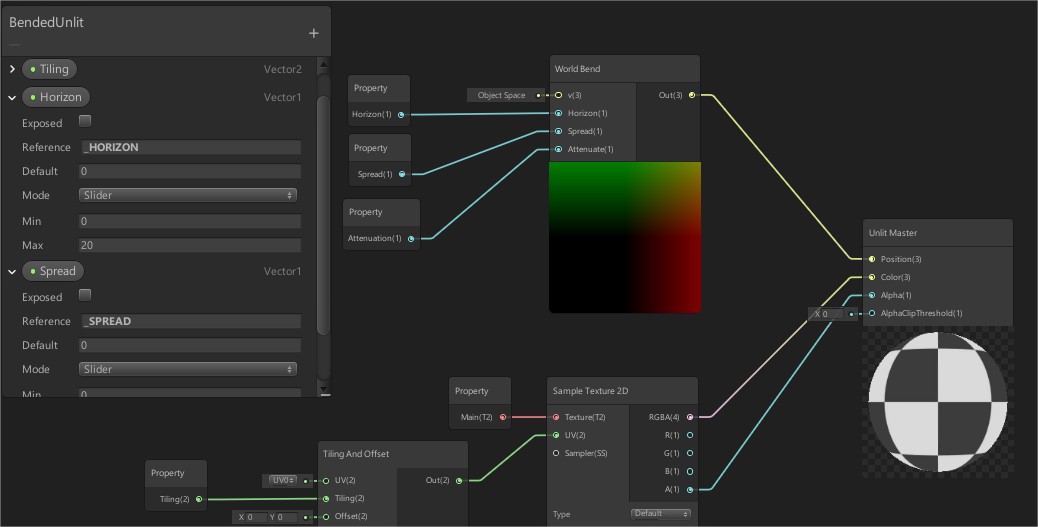
Hurray! Unity 2018.2 is out and that means: vertex positions are now accessible in graph shaders!

This means that the world bend shader from this previous post can now be implemented as a node! The cool part is: I only added one .cs file containing a custom node and it works with the existing code.

Add the "World Bend" node into the graph, and define 3 properties "Horizon", "Spread" and "Attenuation" (check my previous post to see what they are for). Connect the output as input for the position of your Master Node. Do not expose the three properties, but give them these reference values respectively: "_HORIZON", "_SPREAD", "_ATTENUATE". That way they receive the global values set by the World Bender script on the camera. And that's it! There is only one extra file:

using System.Reflection;
using UnityEditor.ShaderGraph;
using UnityEngine;

[Title("Custom", "World Bend")]
public class BendNode : CodeFunctionNode
{
 public BendNode()
 {
  name = "World Bend";
 }

 protected override MethodInfo GetFunctionToConvert()
 {
  return GetType().GetMethod("Bend",
   BindingFlags.Static | BindingFlags.NonPublic);
 }

 static string Bend(
  [Slot(0, Binding.ObjectSpacePosition)] Vector3 v,
  [Slot(1, Binding.None)] Vector1 Horizon,
  [Slot(2, Binding.None)] Vector1 Spread,
  [Slot(3, Binding.None)] Vector1 Attenuate,
  [Slot(4, Binding.None)] out Vector3 Out)
 {
  Out = Vector3.zero;
  return @"
{
 Out = mul (unity_ObjectToWorld, v);
 float dist = max(0.0, abs(Horizon.x - Out.z) - Spread);
 Out.y -= dist * dist * Attenuate;
 Out = mul(unity_WorldToObject, Out);
}";
 }
}

As always, you can find a small demo on my unity toolset repo. I'm open for feedback!

06 April 2018

Trashing the cache: C++ vs C#

In my previous post I showed how data locality can improve your program's performance. Since then I have been wondering whether these same optimizations are valid in C# too. (If you haven't read the previous post you'd better do that first, or this won't make much sense)

Integer array

Thus again, we loop over an array of integers with increasing step size, inspired by this blogpost. The goal is to illustrate the impact of cache-fetches, where we need to fetch data from memory into the cache instead of having a cache-hit. In C# we have almost identical code to the C++ version:

const int length = 64 * 1024 * 1024;
var arr = new int[length];
for (int k = 1; k <= 1024; k = k * 2)
{
  for (int i = 0; i < length; i += k)
  arr[i] = i;
}

We measure how long it takes to go through the array and perform an operation on each value, with an increasing step size of powers of two. That gave me these results:

That's quasi identical to the C++ version:

In other words, we're just as memory-fetch-time bound in C# as we are in C++. This should not come as a surprise.

GameObjects

We create a similar GameObject class as in the C++ version:

class GameObject3D
{
  public float[] transform = {
    1,0,0,0,
    0,1,0,0,
    0,0,1,0,
    0,0,0,1
  };
  public int ID;
}

Here we stumble upon a difference between C++ and C#: creating an array of these objects in C++ allocates the memory and initializes it with the default constructor on every instance. In C# we must write this ourselves:

GameObject3D* arr = new GameObject3D[length];

vs

GameObject3D[] arr = new GameObject3D[length];
for (int i = 0; i < length; i++)
  arr[i] = new GameObject3D();

The timings are very similar. Again, we are bound by cache speed:

Here's my alternative again:

class Transform
{
  public float[] values = {
    1,0,0,0,
    0,1,0,0,
    0,0,1,0,
    0,0,0,1
  };
}

class GameObject3DAlt
{
  public Transform transform;
  public int ID;
};

Which yields this graphic:

Wait what? What happens here? The chart has a different shape than the C++ version and is almost twice as high? C# clearly introduces some overhead here. The talk of Joachim Ante on the new Entity-Component system of Unity gave me the idea to try a struct version of our classes; because we are creating the game object instances one by one they're not guaranteed to be located next to each other in memory. So I tried this instead:

struct SGameObject3DAlt
{
  public Transform transform;
  public int ID;
};

Unlike arrays of classes, arrays of structs are co-allocated in memory and initialized, causing the same speeds as we had in C++ (even a little bit faster!):

Ok, that's it. We re-created all tests in C# and we achieved quasi identical results. In conclusion: C# is just as memory-fetch-bound as C++, and in C# you carefully need to think whether or not you want to use structs instead of classes. But the fact that we achieve at least the same timings also shows that C# is as fast as C++ in these rather contrived tests.